
BuildingMinds API
This page introduces the BuildingMinds API.
Looking for the full API reference? Switch to the API Endpoints section instead.
The BuildingMinds API lets you onboard your portfolio's Digital Twin — buildings, spaces, meters and more — into the BuildingMinds platform from your own systems, over a secure REST interface. Data is exchanged as JSON.
This guide takes you from your credentials to a confirmed connection, then explains how ingestion works. Every request is made over SSL. This service is enabled by your BuildingMinds Key Account representative.
Base URL
https://api.onbuildingminds.com/api/digitaltwinintegration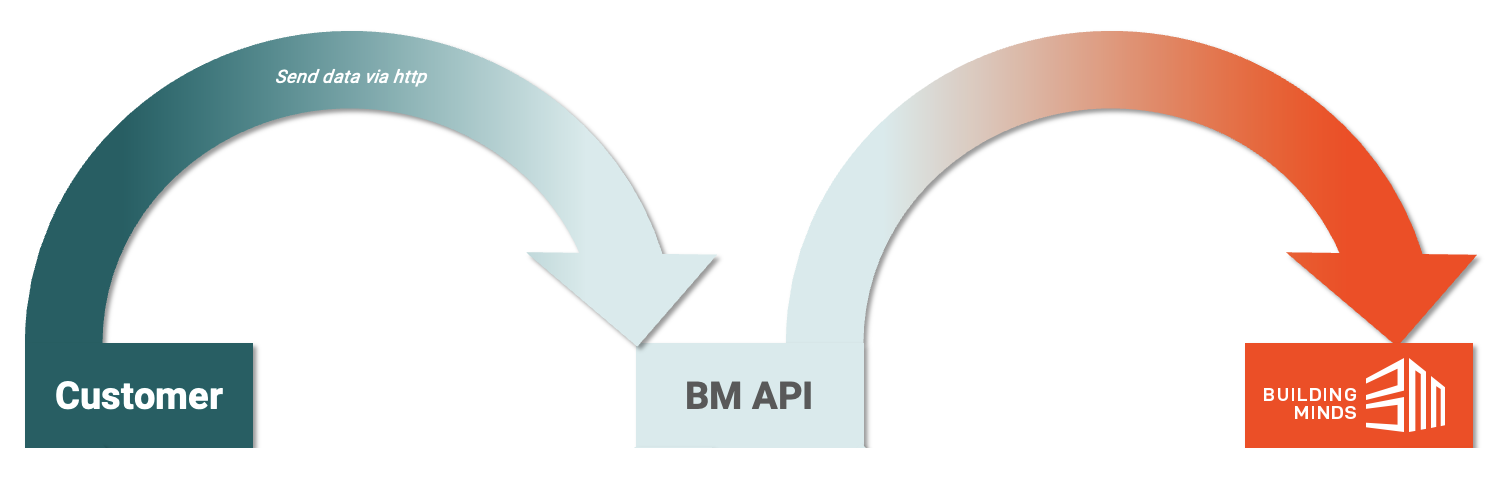
Before you start
Your BuildingMinds Key Account representative will have given you three values:
| Value | What it is |
|---|---|
| Client ID | Identifies your key. Not secret. |
| Client Secret | The password for your key. Keep it secret — anyone with it can access your data. |
| Scope | Tells the login server which BuildingMinds environment your key is for. When you request a token, append /.default to this value (see Step 1). |
How authentication works
Authentication uses OAuth 2.0 client-credentials. In plain terms: you exchange your three values for a short-lived access token (a string that proves who you are), then send that token with every request. The model is always two steps:
- Exchange your three values for an access token (valid ~60 minutes).
- Send that token as a Bearer token in the
Authorizationheader of every request.
There is no separate refresh token — when a call returns 401, simply request a new token.
Step 1 — Get an access token
Choose your environment. Each example requests a token and stores it in a variable for the next step. Note: the scope must be your Scope value with /.default appended — the client-credentials flow requires it.
TOKEN=$(curl -s -X POST \
  "https://login.microsoftonline.com/buildingminds.onmicrosoft.com/oauth2/v2.0/token" \
  -H "Content-Type: application/x-www-form-urlencoded" \
  --data-urlencode "client_id=<YOUR_CLIENT_ID>" \
  --data-urlencode "client_secret=<YOUR_CLIENT_SECRET>" \
  --data-urlencode "scope=<YOUR_SCOPE>/.default" \
  --data-urlencode "grant_type=client_credentials" \
  | sed -n 's/.*"access_token":"\([^"]*\)".*/\1/p')
$body = @{
client_id = '<YOUR_CLIENT_ID>'
client_secret = '<YOUR_CLIENT_SECRET>'
scope = '<YOUR_SCOPE>/.default'
grant_type = 'client_credentials'
}
$response = Invoke-RestMethod -Method Post `
-Uri 'https://login.microsoftonline.com/buildingminds.onmicrosoft.com/oauth2/v2.0/token' `
-ContentType 'application/x-www-form-urlencoded' -Body $body
$token = $response.access_tokenimport requests
resp = requests.post(
"https://login.microsoftonline.com/buildingminds.onmicrosoft.com/oauth2/v2.0/token",
data={
"client_id": "<YOUR_CLIENT_ID>",
"client_secret": "<YOUR_CLIENT_SECRET>",
"scope": "<YOUR_SCOPE>/.default",
"grant_type": "client_credentials",
},
)
resp.raise_for_status()
token = resp.json()["access_token"]What comes back:
{
  "token_type": "Bearer",
  "expires_in": 3599,
  "access_token": "eyJ0eXAiOiJKV1QiLCJhbGciOiJSUzI1NiIs..."
}
Prefer a GUI? In Postman, open a request → Authorization tab → Type OAuth 2.0 → Grant Type Client Credentials; set Access Token URL to the token endpoint above, Client ID / Client Secret to your values, and Scope to <YOUR_SCOPE>/.default. Click Get New Access Token.
If Step 1 fails
| Message | Cause | Fix |
|---|---|---|
AADSTS7000215: Invalid client secret provided | Wrong or expired secret | Re-copy the Client Secret; if it's old, generate a new one. |
AADSTS700016: Application … was not found | Wrong Client ID | Re-copy the Client ID exactly (watch a letter O vs a zero 0). |
AADSTS1002012: … must have a scope value with /.default suffixed | Scope is missing the /.default suffix | Append /.default to your Scope value (see Step 1). |
AADSTS70011 / 90014: scope … is not valid / is missing | Wrong or empty Scope | Use the Scope value as provided, with /.default appended. |
Step 2 — Validate your connection
Confirm your token works with a read-only call. GET /batch lists your recent ingestion batches and changes nothing — the safest way to verify your setup before you send any data.
curl "https://api.onbuildingminds.com/api/digitaltwinintegration/batch" \
  -H "Authorization: Bearer $TOKEN"
Invoke-RestMethod -Method Get `
-Uri 'https://api.onbuildingminds.com/api/digitaltwinintegration/batch' `
-Headers @{ Authorization = "Bearer $token" }import requests
r = requests.get(
"https://api.onbuildingminds.com/api/digitaltwinintegration/batch",
headers={"Authorization": f"Bearer {token}"},
)
print(r.status_code, r.json())A 200 response means your credentials work. If you haven't onboarded anything yet, the list may be empty — that is still a success.
How ingestion works
Onboarding data is asynchronous, and it's worth understanding before you build:
- Submitting is validate-then-queue. A
POSTto an entity endpoint (e.g./building) takes a JSON array of records, validates them, and queues them. A200means your records were accepted and validated — not that they are live in the platform yet. A400means one or more records failed validation. - Track progress with the batch. Every submission returns a
batchId. PollGET /batch/{batchId}/inboundto see each record's status; a record is fully onboarded when it reachesCompleted(orPublishedfor some entity types). - Order doesn't matter. You do not need to send parent entities before their children. If a record references a parent that hasn't arrived yet, it is held and resolved automatically once the parent is onboarded.
- Errors are per record. A
400response lists the failed records infailedMessages, each with the original record and a validation message, so you can correct and re-send just those. - Re-sending is safe by external ID. There is no idempotency key; records are matched on the IDs you provide, so re-sending the same entity (same ID) updates it rather than creating a duplicate. Keep your IDs stable, and let a batch finish before re-sending it.
Error handling
The API returns an HTTP status code for every request. 2xx indicates success; 4xx/5xx indicate an error, accompanied by an explanatory message.
| Status Code | Description |
|---|---|
| 200 | Success — records accepted and validated |
| 400 | Validation error — one or more records failed; see failedMessages |
| 401 | Authentication error — credentials missing, incorrect or expired |
| 403 | The authenticated user has no access to this resource |
| 404 | Invalid endpoint, or the requested resource does not exist |
| 405 | The HTTP method used for this endpoint is invalid |
| 429 | Too many requests — the rate limit was exceeded |
| 5xx | A server error occurred and the request couldn't be completed |
| 503 | Temporary server issue — please try again |
Rate limit
The API allows 100 requests per minute per credential. If you exceed it you'll receive a 429 — wait about a minute and retry. You can include many records in a single array per request, so prefer fewer, larger submissions over many small ones.
Token lifetime & security
- Lifetime: ~60 minutes. When a call returns
401, request a fresh token (Step 1). There is no refresh token. - Rotate the Client Secret periodically, and immediately if it may have been exposed.
- The Client ID and Scope are not sensitive; the Client Secret is — treat it like a password.
- All requests are made over SSL.
- For BuildingMinds' security, certifications, and compliance information, see the BuildingMinds Trust Center.
Troubleshooting
| Symptom | Likely cause | Fix |
|---|---|---|
Step 1 returns an AADSTS… error | Wrong/expired Client Secret, Client ID, or Scope | See "If Step 1 fails" above. |
API call returns 401 | Token expired (>~60 min) | Request a new token (Step 1). |
API call returns 403 | Your key isn't permitted for that operation | Contact your BuildingMinds representative. |
A 200 submission but data isn't visible | Ingestion is asynchronous | Poll GET /batch/{batchId}/inbound until records reach Completed / Published. |
Updated 4 months ago